Lab 2.2 — Build and Deploy with OpenCode
You have a Dev Space, an LLM, and a template repository that encodes your platform’s rules in AGENTS.md. You will use two focused OpenCode sessions to go from zero to a running application on OpenShift.
|
Estimated time: 30 minutes |
|
OpenCode reads |
Step 1: Open the Project and Launch OpenCode
Dev Spaces already cloned the template when you created your workspace — it is in ${PROJECT_SOURCE}.
Open a terminal and navigate to it:
cd ${PROJECT_SOURCE}

# Confirm the template files are present
lsAGENTS.md deploy/ devfile.yaml gitops/ opencode.json pipeline/ scripts/Launch OpenCode:
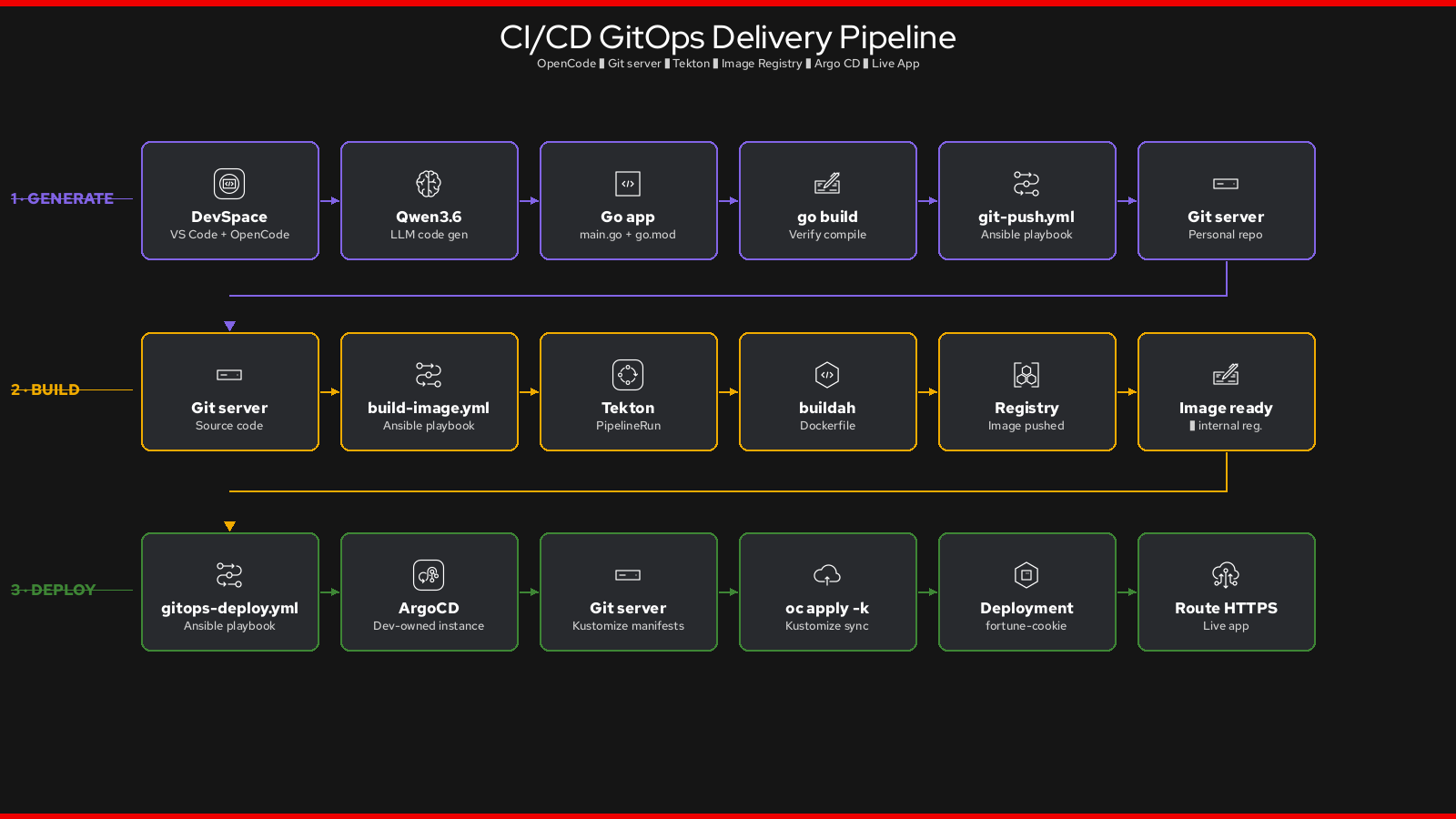
opencodeThe template provides three Ansible playbooks that OpenCode will call, plus the Kustomize manifests they apply:
| Playbook | What it does | Duration |
|---|---|---|
|
Creates your personal repo on the Git server and pushes all code |
~30s |
|
Applies |
3–5 min |
|
Applies |
2–3 min |
|
These playbooks are also exposed as one-click tasks in the DevSpaces sidebar (rocket icon). OpenCode calls them the same way — each task prints named steps so you can follow what is happening. |
Session 1: Plan
The plan agent is read-only. It analyses the request and produces a detailed implementation plan without writing any files. Use it first to surface design decisions and let OpenCode internalize AGENTS.md.
Type this prompt in OpenCode:
/plan

I want a Fortune Cookie web application in Go.

The app serves:
- GET /   — an HTML page that displays a random fortune cookie message
            (hard-code at least 10 messages in a slice)
- GET /healthz — returns {"status":"ok"} for Kubernetes health probes

Read AGENTS.md and produce a complete implementation plan:
- File list and purpose of each file
- HTTP handler logic
- Dockerfile stages (follow the template in AGENTS.md exactly)
- Deploy steps using the three scripts

Do not write any code yet. Only plan.
Review the plan. Adjust if needed. When satisfied, proceed to Session 2.
Session 2: Build and Deploy
This single session does everything: generates code, verifies the local build, then calls the deploy scripts in order. Start a new session (Ctrl+N):
/build

Implement the Fortune Cookie application following AGENTS.md strictly.

== Phase 1: Generate code

Generate these files:
1. main.go       — HTTP server on :8080, / (HTML fortune) and /healthz handlers
2. go.mod        — module: fortune-cookie, go 1.22
3. Dockerfile    — use the exact two-stage template from AGENTS.md
                   (ubi9/go-toolset builder → ubi9/ubi-minimal runtime, USER 1001)

After writing every file, run:
  CGO_ENABLED=0 go build -buildvcs=false -o /dev/null .

Fix any compile error before continuing. Show the build output.

== Phase 2: Deploy

Once the build succeeds, run the three Ansible playbooks from AGENTS.md in order:

  ansible-playbook scripts/git-push.yml
  ansible-playbook scripts/build-image.yml
  ansible-playbook scripts/gitops-deploy.yml

Read each playbook's task output. Wait for it to succeed before running the next.
If a task fails, the error is shown inline — read it and fix the root cause.

At the end, print:
- The app route URL
- The personal Argo CD console URL
OpenCode will work through both phases automatically, reporting each step. You will see the Dockerfile it generates, the binary being compiled, and the three Ansible playbooks executing — each one printing named tasks so you can follow exactly what the platform is doing.
Checkpoint
Verify your application is live:
APP_ROUTE=$(oc get route $APP_NAME -n ${APP_NAME}-dev \
  -o jsonpath='{.spec.host}' 2>/dev/null)
ARGOCD_ROUTE=$(oc get route argocd-server -n ${APP_NAME}-dev \
  -o jsonpath='{.spec.host}' 2>/dev/null)

echo "================================================"
echo " App:    https://${APP_ROUTE}"
echo " ArgoCD: https://${ARGOCD_ROUTE}"
echo "================================================"

curl -sk https://${APP_ROUTE}/healthz
Expected:
{"status":"ok"}Open both URLs in your browser:
-
The app URL shows a random fortune cookie message
-
The Argo CD console shows your
fortune-cookieApplication in Synced / Healthy state — this is your Argo CD instance, scoped entirely to your project
➡️ Move on to Lab 4: Ship It — Validate the GitOps Loop.